Review the Guidelines
Before you get started, we recommend that you review our information about Choosing a Domain Name.
The Sign-Up Process
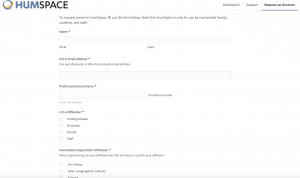
Once you’ve reviewed the guidelines, you can proceed to the sign-up page.
Before you get started, we recommend that you review our information about Choosing a Domain Name.
Once you’ve reviewed the guidelines, you can proceed to the sign-up page.
One aspect of humspace.ucla.edu that users may find a bit complicated at first is understanding the different accounts (and associated passwords) that you can manage as part of your participation in the project. This article outlines the types of accounts that you are likely to have, what they are for, and how you go about resetting passwords on each of them.
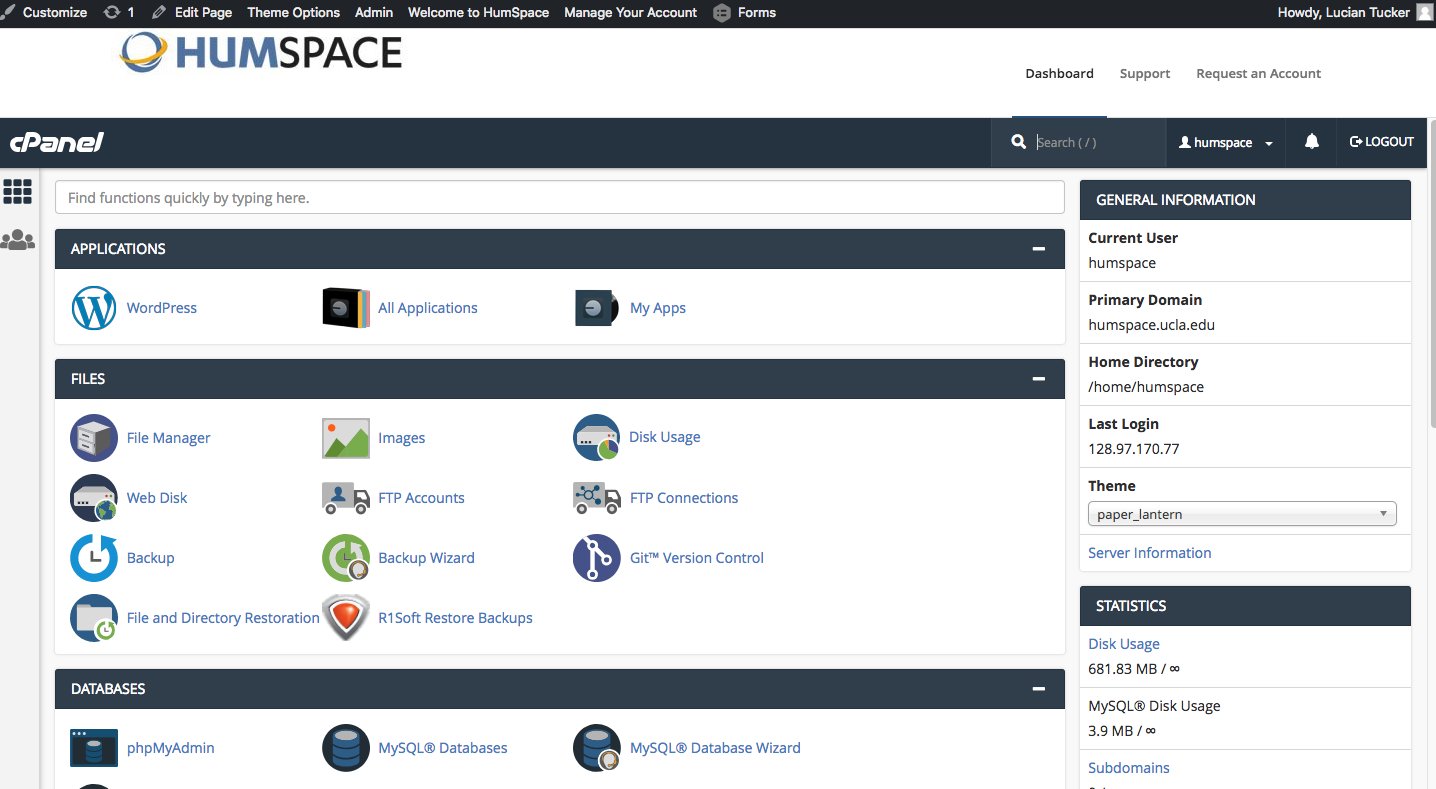
When you first sign-up for your domain and hosting, a cPanel account will be generated that provides you with access to your slice of the humspace.ucla.edu web server. Your cPanel account is automatically associated with your HumSpace username. Therefore, your HumSpace username will grant you access to your cPanel account.
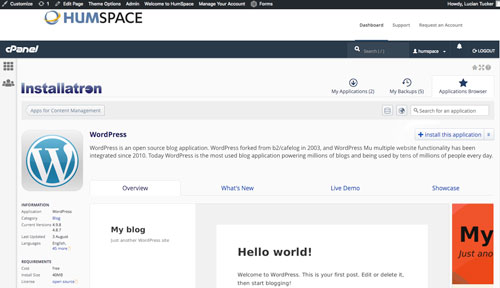
Every time you install a new application in cPanel, an Administrator Account for that application will be created. You will likely use these accounts very often – every time you need to login to your application to manage the associated website, you will use this account.
For example, if you install WordPress to manage your Web site, every time you need to add content to WordPress, change your theme, approve comments, etc. you will use this account to login.
Usually, you will be given the opportunity to choose the username and password for that account. We recommend choosing something that you are likely to remember but that is strong and secure.
Upon installation, you will likely receive an email confirming the user-id/password combination you chose. It will also have information about how to access the login page for that application. You may wish to make sure you don’t delete this message.
Depending on the application you’re working with, managing and resetting the password for this account will vary. If you’ve used Installatron (in cPanel) to install the application, however, you can always review the account credentials:
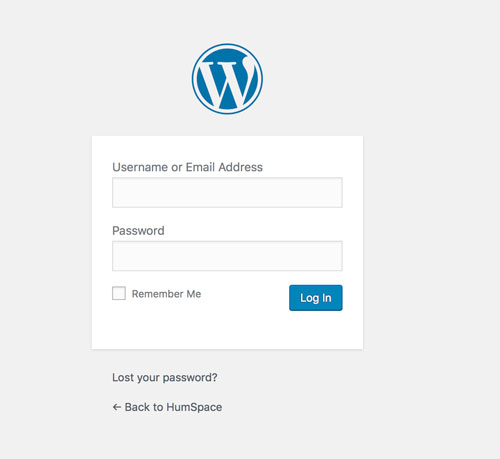
In addition, most applications should have some kind of password reset link on the login page. For more information on resetting your application password through Installatron, click here.
In addition to the account types outlined above, there are a few other kinds of accounts you may have as part of humspace.ucla.edu:
Choosing your domain name is the first step in getting started with staking your claim on the web. Your domain name is a unique Web address (e.g. yourname.humspace.ucla.edu) that can be used to build out your own digital presence. As you make your choice, there are a few considerations to keep in mind:
Your Domain Name Must Be Available: Domain names must be unique, which means in order for you to claim your own, you need to be sure that it is currently available (and not being used by anyone else or any company or organization). There are lots of tools to check on domain availability, and when you sign up on humspace.ucla.edu, we’ll actually check the availability of your choice for you. If you’d like to spend some time thinking about your choice and checking availability before you actually sign-up, we recommend using whois.com.
Choose a Domain You Can Live With: You should choose a domain name that you feel you can live with for quite some time. You should pick something that you won’t find embarrassing in the future. A good rule of thumb is to pick a domain that you would be comfortable putting on a future job application.
You May Wish to Include Your Name in Your Domain: There is no requirement that your domain reflects your specific identity in the form of your first and last name. However, choosing a domain name that includes your name may make it easier for you to achieve higher rankings in search engines when someone queries your real name.
Pick a Domain you Like: At the end of the day, your domain should reflect you. Pick a domain you like and are proud of. It can reflect your interests, sports you play, or your hobby. Or it could just be your name. The “right” domain for you is the one you’re comfortable with.
To export your domain, we will create a backup of both the files in your domain and the databases that your domain draws from. First, click on the ‘Manage Your Account’ menu at the top of your screen and select ‘Migration Information.


This article only if you own your own top-level domain. If you have been using the free subdomain option with humspace.ucla.edu through HumSpace, this does not apply to you.
Similarly, if you’re migrating your content to Reclaim Hosting, this article does not apply to you.
Transferring a domain you already own is not too much different from registering a new domain, except the transfer process requires an EPP code, or an agreement code between your old registrar and your new registrar that allows the release of your domain. Your new registrar will have information on how to transfer in a domain. When you start that process, you will be prompted to enter your EPP code.
How to find your EPP Code:


3. Click the Lock button to unlock your HumSpace account.
4. Click Get Code. Once that’s done, the system will send you an email with your EPP code.
At this stage, here are a few items to note:
The first step will be to sign up for an account at Reclaim Hosting. This link will take you directly to their Student/Individual Hosting plan option.
-If you already have a Top-Level domain (i.e. yourdomain.com) choose the I will use my existing domain and update my nameservers option.
-If your current website content exists on a subdomain (i.e. yourdomain.humspace.ucla.edu), select the Register a New Domain option.
-Enter a new top-level domain name
Complete the sign-up process/pay invoice. If you’d like to take advantage of a 10% discount, enter the promo code reclaim4edu.
Send a support request to support@reclaimhosting.com with the following message:
Hello Reclaim Hosting Support,
I am graduating from (your school) and I would like to migrate my account, (your domain), to Reclaim Hosting. Please let me know if you need anything else from me.
Best,
(Your Name)
A member of Reclaim Hosting support will respond & help you get your account migrated within 24 hrs.


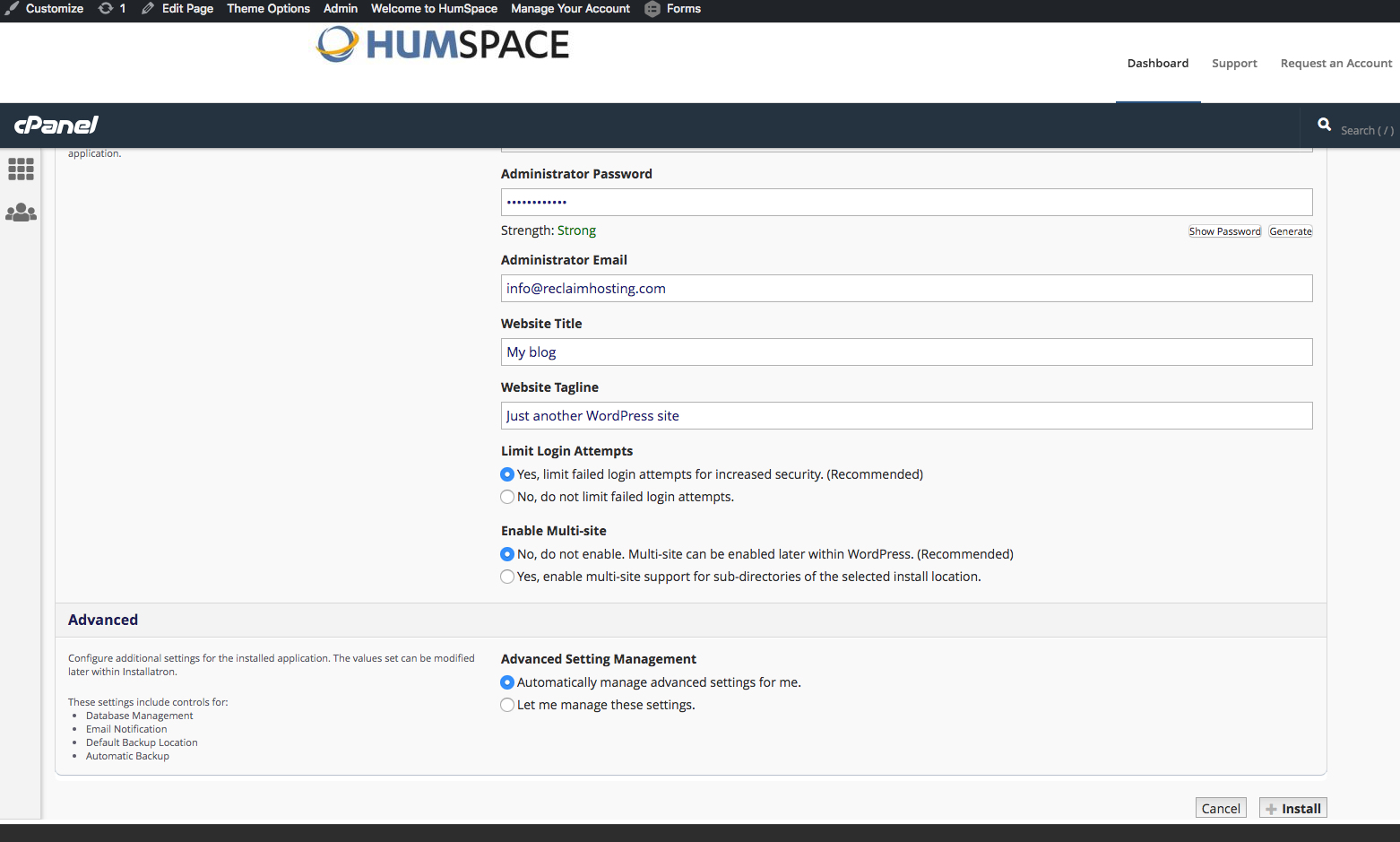
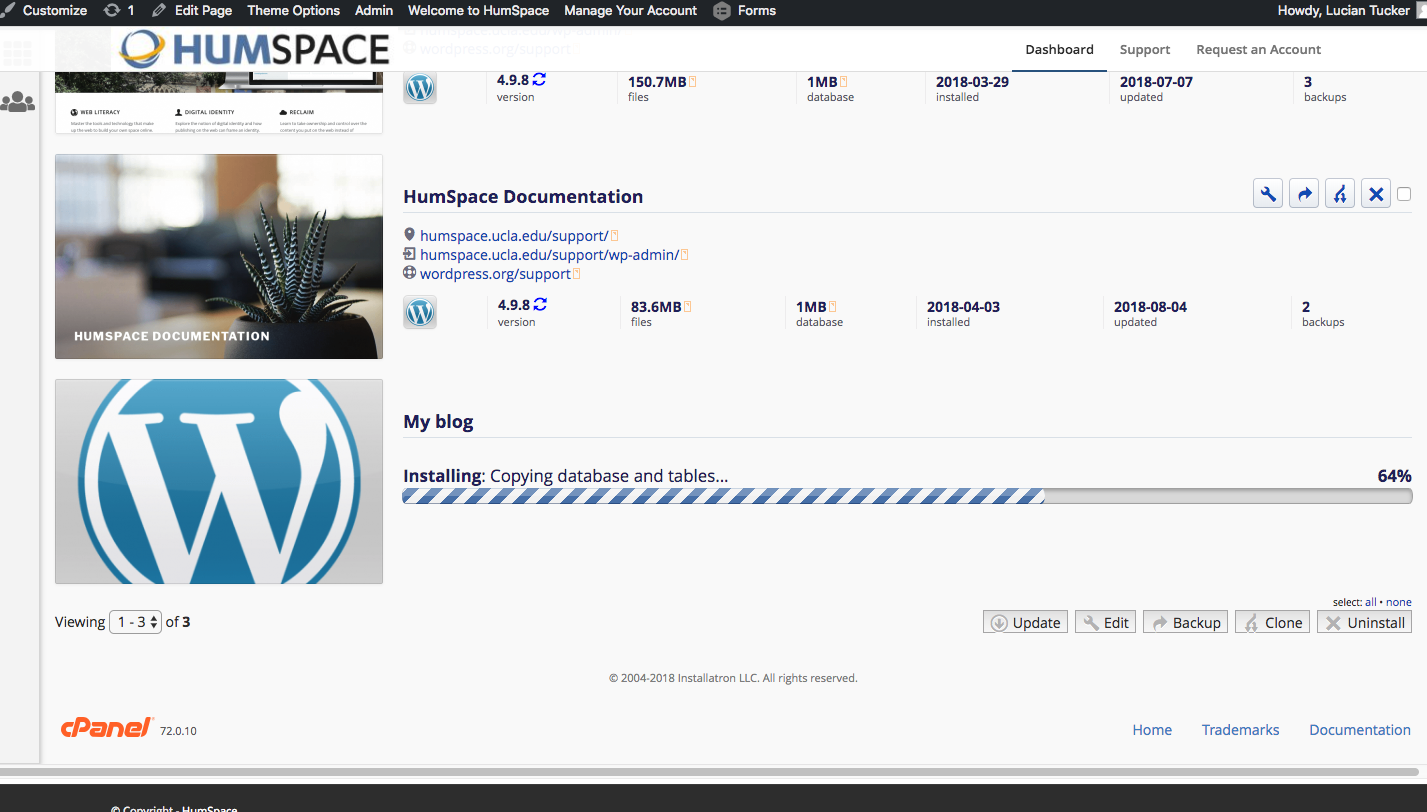
Congratulations, you’ve now installed WordPress! Now you can start customizing it with themes, plugins, and more.
Now that you have your WordPress installed and running, it’s time to look at some basic settings for your site.

When you change the Blog title and tagline, they will show up at the top of your site. Depending on what theme you use, the title and taglines will show up in various places. In the case of some themes, they might not show up at all depending on whether they allow custom configurations. We won’t worry about that for now.
There are more settings on the General Settings page, such as setting the administrative email account, time zone, date format, etc. Change those to whatever is appropriate for your site and geographical location.
When it comes to WordPress, customizing the look of your site is simple and straightforward. When you install WordPress, the default (or pre-set) theme is called Twenty Seventeen (as of WordPress version 4.8). It is a very customizable theme.
You can find general information about Twenty Seventeen here.
In addition to Twenty Seventeen, you’ll have other themes available to you. (What themes you have depends upon if you did a default WordPress installation, or if you installed a special package.) If Twenty Seventeen doesn’t meet your needs, you can activate another theme on your site or install a completely new one.


That’s all you need to do to change the look of your site with a new theme.
If none of the themes that were provided when you installed WordPress are what you’re looking for, you can always search for and install other themes from the WordPress Theme Repository.


Once activated, your site will be using the new theme. Visit your site’s homepage to view your new theme.
The primary activity that you’re likely to be doing on your WordPress site is publishing content. The content could be the text you write, pictures you take, videos or audios (which may be hosted on another site), or other media that you’ve found elsewhere on the Web. WordPress makes it very easy to publish media content of all types, whether hosted on your actual Web server or elsewhere.
Out of the box, WordPress provides two primary content types for you two work with: posts and pages. If you read blogs or have ever written for a blog before, the concept of a post is probably a bit familiar. Posts often are content that appear on your blog in some kind of scheduled way. They usually are presented on your site in reverse-chronological order. Posts might be what you use to share your regular thoughts, reflections, or ideas about a topic. Posts make up a kind of “river” of content that you’re producing as part of your blogging activity.
Pages usually correspond to our more traditional concept of what makes up a Web site. Pages are presented outside of the “river” of content that are posts. They are more likely to stand alone and be organized according to a traditional hierarchy. Pages might be content that is less frequently updated or changed.
If you were using WordPress to build a business Web site with a lot of information content, you would probably use Pages. If you added a feature to that site where you started to advertise special events or news, you would probably use Posts.
A few other things to know about Pages vs Posts:
Upon occasion, you may want to include media (images, audio, video) in your site’s posts and pages. There are generally two approaches to handling media in WordPress:
Uploading: You can upload the files to your site’s Media Gallery and then link to them in your posts/pages. This works very well for images, and when you take this approach for images you have the added benefit of being able to make use of WordPress’ built-in (albeit rudimentary) editing tools. Also, when you upload images to WordPress, it automatically creates different sizes that you can use, as needed. This approach works less well for audio and video. In order to have your media files actually show up in a “player” (with controls for stopping, pausing, etc.) you’ll need to install a plugin. Otherwise, you’ll only be able to include links to the files. How people view/listen to them will depend a bit on the setup on their own computer and in their own browser. They may, for example, have to download the media file and then open it in another program on their computer.
Embedding: You can embed media from other sites easily in WordPress. Embedding an image just means providing a URL to its location elsewhere on the Web. Instead of uploading it to the server, WordPress grabs that image from the external source and displays it on your post/page. However, with this approach, you lose your editing capabilities as well as the resizing feature. Embedding audio and video from external sources becomes easier with every version of WordPress it seems. These days, you can embed video and audio from many external services (YouTube, Vimeo, SoundCloud, complete list here) by simply placing the full URL of the audio/video location on its own line in your post/page. There is a complete list of supported external services, and you can learn more about embedding from external sources at the WordPress site. Our general advice is to use externally hosted media whenever it makes sense and works. This is usually the case when you need to use audio or video; without plugins, well-presented audio and video in WordPress is tricky. For images, if you need to do basic editing and/or require different sizes of images, upload them to your site. Otherwise, consider referencing them from another location (your Flickr account, for example).
Recent versions of WordPress have built out a new “post format” feature which, if you are using a theme with the feature enabled, will style post formats differently depending on what they are. The formats that are built-in to WordPress (and are available for theme developers to use) are the following:
Those of you familiar with Tumblr may recognize this approach to post formats.
For the most part, post formats are designed as a way to style a site (and customize styling depending on the kind of content that is being displayed). They have no special functionality, and their use depends entirely upon the theme you are using. Many older themes, for example, do not recognize post formats.