Reading Settings – Front Page

WordPress is a very flexible platform for creating full-blown websites, not just blogging sites. This page will show you how to change the “front page” of your website.

As we have said before, WordPress provides two primary content types for you two work with: posts and pages. Posts, as in blog posts, are a somewhat complex form of a webpage. Each blog post gets published in reverse chronological order, on the front page of a WordPress site. You write a new post, and it gets published at the top of the front page. Pages are a more static form of content. They are additional areas to put information that doesn’t change much. So what if you would like to make the front page of your WordPress site based on a page instead of your blog posts?

  1. Start at the Dashboard.Screen shot of WordPress Dashboard
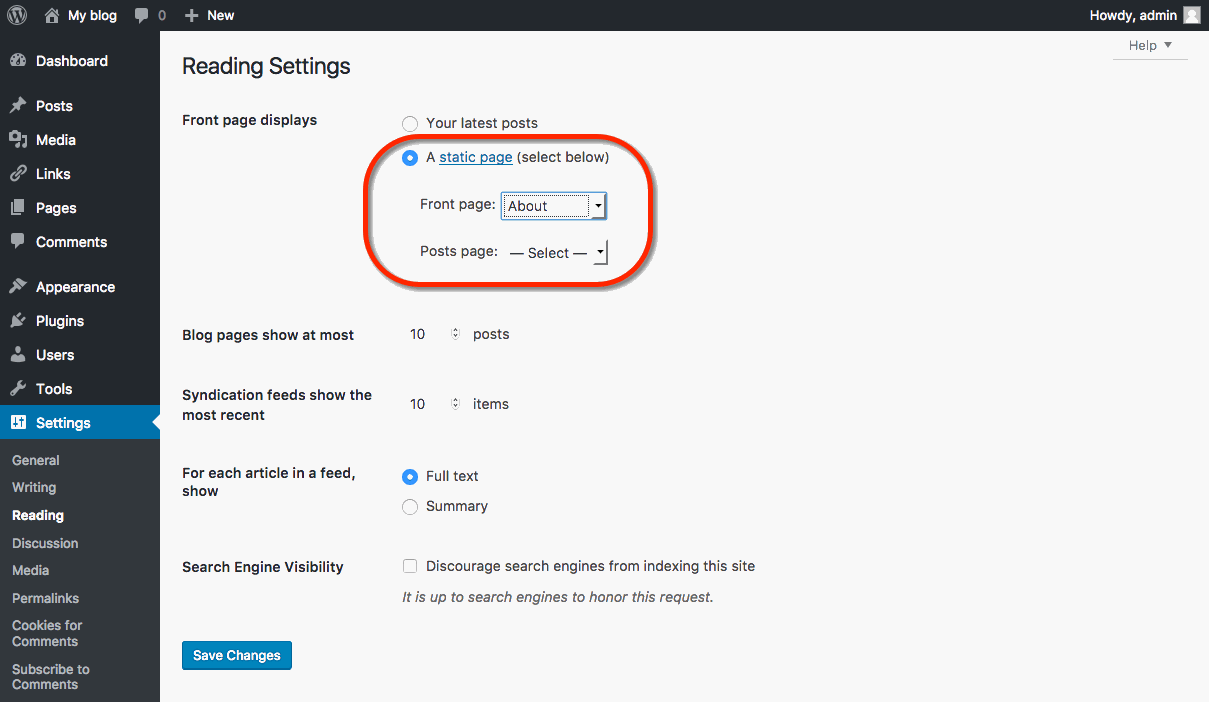
  2. Navigate to Settings > Reading.screen shot of WordPress reading settings
  3. Normally, the front page displays your latest blog posts. What we want to do instead is select a Page from the website. Obviously, this page has to exist before you can select it. Select the “A static page” radio button and choose the About page from the Front page drop-down menu (an About page was created for you when you installed WordPress). Press the Save Changes button and now you will have the “About” page as your Front page. Edit it as you see fit and provide a good welcoming page for your visitors. screen shot of Word press reading settings
  4. But wait. What will happen to your blog posts? Most people will want them as the “dynamic” part of your site. First, create a new Page.screen shot of
  5. Title it Blog (you can title it whatever you want but Blog is common and descriptive). Leave the page blank (don’t type any text in the edit box) and Publish it.screen shot of adding a new post
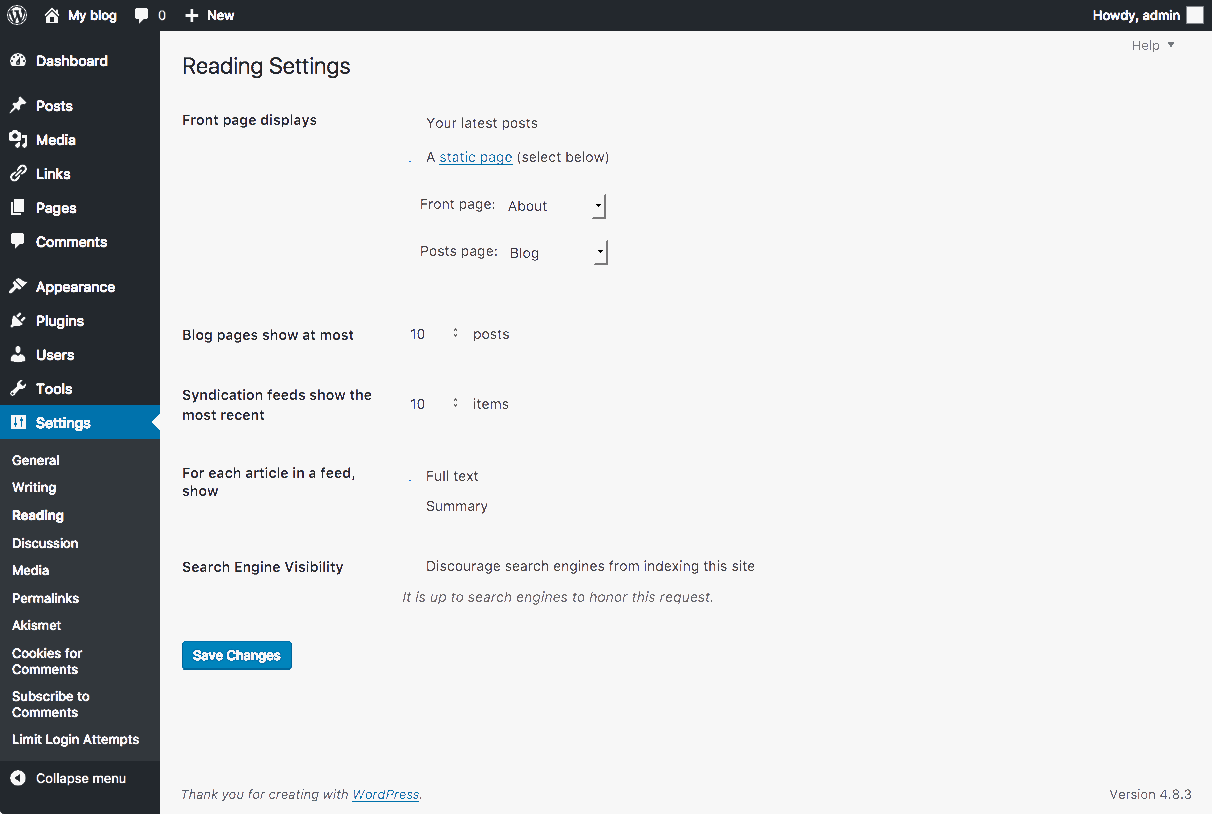
  6. Now go back to Settings > Reading. Under the static page area choose Blog from the Posts page drop-down.select new WP post page
  7. Click the Save Changes button. Now your “home” page will actually display the About page. You will also have a Blog item in your menu (depending on your theme, you may have to customize your page display to see pages).
  8. If you click on the Blog menu item, you will then see your blog posts. Notice the /blog added to the web address.

Permalinks

Part of the popularity of WordPress is how easily it makes a website functional and yet attractive. One of the smaller details that you might want to adjust is how the addresses to your blog posts are structured. Permalink is the name given to the address of an individual blog post because they are “permanent links”. For this example, the web address we’ll use for this sample blog is yourdomain.humspace.ucla.edu. The link to the first post, titled “Hello World” may be structured in many ways. The screenshot below shows one way: “http://yourdomain.humspace.ucla.edu/blog/uncategorized/hello-world”.

With WordPress, you have many options to form the links to posts, and you can change them to work for your particular content.

  1. To change the permalink structure, start by going to the Dashboard.
    Screen shot of WordPress Dashboard
  2. Next, go to Settings > Permalinks. By default, your blog will use a “custom structure” that includes a category select and the name of the blog post.
  3. If you are not using categories, or prefer a different look to your blog post addresses, there are several choices under Common Settings.  A popular choice is to use the Post name choice, which is a bit more informative. So our post titled “Hello World” will have an address of “http://sstrauss.sites.haverford.edu/blog/hello-world”.
  4. If you want to have the date as part of the address, you can choose Day and name or Month and name. You can also change the structure of category and tag names under the Optional section.
  5. Finally, when you write a blog post, you have the option of editing the permalink for an individual post. Just click the Edit button (underneath the Title field).
  6. Then type in whatever is appropriate (and hasn’t been used yet). Generally, you want to make it as simple and short a word, or words, as makes sense.

What is Domain Mapping?

Domain mapping, simply put, is deciding where visitors should be directed when they visit various pieces of your website. Domains and subdomains can be mapped directly to folders located within your webhosting account, where you may have installed WordPress, Omeka, MediaWiki, or other web applications. Domains and subdomains can also be mapped to some third-party providers.

What is DNS?

Remember back before everyone had computers that fit in their pocket, how companies would ship a book full of phone numbers to your doorstep? We might have known who we were looking for, but we needed to look up phone numbers unless they were your crazy relatives that you learned to memorize. When you get your own domain name, by default it’s nothing more than a shortcut, an address, or (to fit this very imperfect analogy) a phone number. When you type a domain name into the address bar of your browser, someone has to identify it and tell it what to display. That’s where a name server comes in.

A name server is a computer, running as a server, that keeps a record of all the domain names that are associated with it and keeps track of where those domains should go. In the case of humspace.ucla.edu, the nameserver is the same computer that runs the hosting. You can peek under the hood and see this in action by going to the Websites and Domains tab of your cPanel account and clicking on DNS Settings. DNS stands for Domain Name System and the name server on humspace.ucla.edu gives control to it to identify what should be displayed when someone types in your domain. Consider the fact that you might have one or more subdomains in your account. The name server and DNS are able to identify those subdomains and let the world wide web know that they exist and point to some files/folders on a computer somewhere.

When you signed up for a domain through the humspace.ucla.edu system your nameservers were chosen for you. So when people type in your address, the server responds with information about your account. When you migrate an account away from one hosting platform like humspace.ucla.edu and onto a new service, it will require you to change the nameservers so that your domain name points to a new server with its own files and structure. It’s also possible to have subdomains that point to entirely different servers than humspace.ucla.edu. For example, you could have a subdomain that looks to Tumblr for files.

Subdomains vs. Subdirectories

When you’re first getting started with a new space on a new Web host, you might think of yourself as owning a small “territory” of the Web. Everything you place in your public folder on the server becomes available for anyone on the Web to see (assuming they know the address of your site and the files you’ve placed there).

If you’re just putting up a handful of static, HTML pages which you want to make available to colleagues, friends, or family by sending them links, then working with this large, unorganized space may work. But as soon as you get to the point where you want to organize your site, you’re going to need a new strategy.

Consider this scenario: you want to have a personal blog on your new Web space, where you share pictures and short written pieces with family, friends, and colleagues. In addition, you’re working on a large research project that requires you to build a Web-based repository of digital images related to your discipline. You want to use one application (say, WordPress) to manage your personal blog. For your research project, you’ve settled on another open-source application (Say, Omeka). Both of these are applications that need to be installed on your Web host, but you can’t just put them both at your main domain name – if you did, both sites would quickly experience conflicts and errors. You need to cordon off separate spaces for your different Web “properties.”

There are two primary strategies for parceling up your Web space. You can create subdomains or subdirectories. But before you can understand the difference, you need to first understand what we mean when we talk about your root domain.

Root Domain

Let’s say you’ve registered a new domain for humspace.ucla.edu called blog.humspace.ucla.edu. Anything that is stored at this core URL is considered to be at the root of your domain. Nothing comes before the address or after the address. You can certainly decide that you simply want to have a single site on your Web host (say a blog running WordPress), and you can set that blog up at your domain’s root. To get to your site in this scenario, users would simply go to blog.humspace.ucla.edu.

Subdomains

When you want to do more than just have a single site at the root of your site, you need to decide now to organize your space. One way to do so is by setting up subdomains.

You’re may already be familiar with the concept of subdomains, even if you don’t know it. Consider Google’s website at https://google.com. As you browse features of that site, you’ll notice that the domain changes. When you’re looking at your Gmail account, for example, the domain changes to https://mail.google.com. Now the root of the url is mail.google.com, indicating that you’re on the part of the site that is dedicated to Google’s mail services.

In this instance, mail.google.com is a subdomain that provides a different utility than google.com. The domains serve two purposes: they help to organize the site from a technical perspective, but they also serve as indications to the users that they are in a new/different space.

As you work on your site, you’re welcome to create as many subdomains as you like, and in each subdomain you can actually create a distinct, individual Web site.

Subdirectories

The alternative for organizing your space is to simply set up subdirectories. These function much like file folders on your computer. Instead of creating a blog at blog.yourdomain.com you would place it in a subdirectory called “blog” making the address yourdomain.com/blog. Setting up subdirectory is really easy. You can create folders on the fly when installing applications (like WordPress), and you can also manually create them in your file browser.

There is one particular issue you need to be aware of: Let’s say you’ve installed WordPress to be your primary blog at yourdomain.com. Later, you decide you want to install WordPress again for a separate image gallery site, and you want to place it at yourdomain.com/gallery. But, if for some reason you’ve already created a page on your WordPress site called “Gallery” then the url yourdomain.com/gallery will already be taken. If you try to create a subdirectory of the same name, you’ll get a conflict and errors.

Tips & Review

  • Subdomains are generally a cleaner, more elegant solution to organizing your site. You’re less likely to get conflicts or errors. However, when using subdomains the process is slightly more complicated: You must create subdomains first before you can install anything in them.
  • Subdirectories don’t create as pretty URLs as subdomains, but they’re easier to set up. They can, however, result in conflicts with existing Web pages.
  • As soon as you create subdomains or subdirectories to organize your site, you need to consider how people are going to find them. If you’ve created a new primary blog at blog.yourdomain.com, and someone goes to just yourdomain.com, they won’t see that new site. It is possible to set up redirects to avoid this issue. You can also always create links from pages on one subdomain of your site to another.
  • If you really just need one site, sometimes installing at the root of your domain is the easiest thing to do, at least as you’re getting started. You can always add more pieces to your territory later with either subdomains or subdirectories.

Tutorials

Setting Up Subdomains

A subdomain is one way of organizing and separating content on your site. To create a subdomain, use the following steps:

  1. Log into humspace.ucla.edu with your HumSpace username and password to access your cPanel.
  2. Once logged in, you’ll be at the homepage of your cPanel. The easiest way to navigate your cPanel is using the search feature in the top right panel. Click the Search box and type “subdomains” (without the quotes). When you press enter, you will automatically be taken to the Subdomains page. Or, you can scroll down and click the Subdomains icon under the Domains section of cPanel.
    screen shot of subdomains application
  3. Choose a name for your subdomain and type it into the Subdomain box. Just like top-level domains, subdomains can only contain numbers, letters, and hyphens, and the best subdomains are simple, short, and descriptive.
  4. Once you’ve typed in a name, cPanel will automatically populate the Document root field for you. This will create a folder to contain your subdomain’s files. You’ll usually want this folder to match the name of your subdomain, so it’s easy to identify where different files live in your account. You might want to change the document root if you already have a folder in your account that has the same name as the subdomain you are trying to create, although this should be rare. Once you’re done, click Create.
  5. Once you’re done, click Create. If everything went well, you should see a message that your subdomain was created successfully.

Your subdomain will now be available as an option for automatic installation of various software (WordPress, MediaWiki, etc). If you prefer to install web applications manually, you can do so in the document root (folder) you created in step 5.

Setting Up FTP

There may be times when you need to upload files to your website in the HumSpace web hosting environment. There are a number of scenarios when this might be necessary:

  • You’re working with an application that allows you to install plugins/extensions, but the files need to be manually added to your file manager in order to install them. (Note: This is not required for WordPress which allows you to install themes/plugins through the WordPress dashboard.)
  • You’ve developed a custom site/pages using a Web design program, and you need to upload the files you created to your file manager
  • You’re installing an application that isn’t part of applications list in Installatron.

One way to upload files is by using the File Manager that is part of cPanel. However, sometimes you’ll find it easier/necessary to use File Transfer Protocol (FTP) to move files to your site. This can be particularly useful if you’re working with a Web space where you’re not the owner (so you don’t have access to the File Manager in cPanel) or if you need to provide file access to someone else to your space on the Web server. File Manager also only allows you to upload files one by one, so if you’re working with large amounts of data then FTP will be preferable.

What exactly is FTP?

File Transfer Protocol is a method that allows you to remotely move files to a Web server from another location – usually your local/personal computer. Using a pre-defined FTP account (with a username and password), you can configure an FTP client (a program you run on your computer that allows you to transfer files via FTP.

There are lots of FTP clients that you can use; some are free and some are not. A few free ones you might consider:

For the purpose of this tutorial, we’ll show you how to set up FTP in FileZilla, (Cyberduck instructions can be found here) but you should be able to generalize these instructions to use in any FTP client.

Get Information about Your FTP Account

If you’re connecting via FTP to your own space on HumSpace, or if you’re setting up an FTP account for someone else to use, you’ll need to start by getting the proper FTP credentials from cPanel:

  1. Login to humspace.ucla.edu.
  2. In the Search Box at the top of the page, search for “FTP”, and click the FTP Accounts icon that appears.
  3. Every cPanel has an FTP account by default, and you can find those credentials by scrolling down on the FTP Accounts page. You also have the option to create a new FTP account, which can be done by filling out the Add FTP Account form with a username and password. Unless you change it, the new FTP account will be limited to a directory with the same name as the account you’re creating. You can change this to a different directory, if you want to grant this account access to a different location.  NOTE: Make sure you know/remember the password you enter. When you’re done, click Create FTP Account.
  4. Once you’ve created the new account, you’ll see it appear in the list at the bottom of the FTP Accounts page. In addition to any accounts you’ve created, in the Special FTP Accounts section, you’ll see the default FTP Account. You’ll know this account because the username corresponds to your cPanel username. This FTP account has full privileges to access all directories within your cPanel.
  5. For whichever account you need credentials for, click the Configure FTP Client link.
  6. Write down the username, server, and port information that appears. You will need to use this (or you will need to provide this to the person you are giving FTP access) along with the password you created in Step 3 in order to configure your FTP client.

PLEASE NOTE:

For cPanel’s default FTP account, use the following settings:

-Connect via SFTP (more secure than FTP)
-Port: 22

For an FTP account that you manually created (shown in Step 3 above), use the following settings:

-Connect via FTP (cPanel doesn’t allow an SFTP connection for manual accounts)
-Port: 21

Configure FTP in Your FTP Client

Below are links to tutorials for setting up both FileZilla and CyberDuck to connect to your FTP account.

For further assistance on FTP, read this guide.